
Blur faces on iPhone
Blur faces in photos on your iPhone, and only the faces you choose.
Blur Photo & Face Censor finds the faces in a photo, lets you tap the ones to hide, and exports a new copy without location data. Nothing is uploaded.
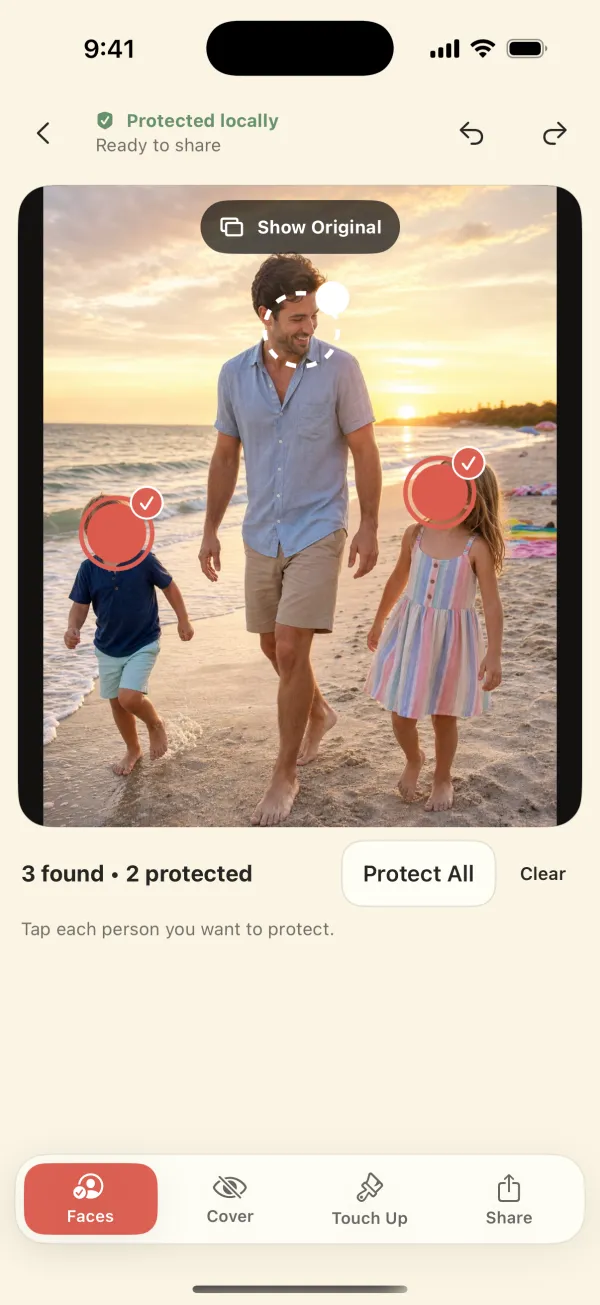
Short answer: open the photo in Blur Photo & Face Censor, tap each face you want hidden (or Protect All), pick Privacy Cover, Mosaic, Emoji, or Soft Blur, check the whole frame, then export. The app runs on-device and costs $3.99 once. For a one-off without an app, iPhone's built-in Markup can draw an opaque box. See free ways to hide a face.
Step by step
- Choose photos. Tap Choose Photos and pick 1–20 images with Apple's photo picker. The app only sees the photos you pick.
- Select faces. Every detected face gets a circle. Tap the ones to hide. Leave yourself or anyone who agreed visible. Protect All covers every detected face at once.
- Pick a cover. Privacy Cover is opaque and the strongest. Mosaic pixelates, Emoji drops any emoji over the face, and Soft Blur is the gentlest. Use the Size slider so the cover reaches past the hairline and jaw.
- Touch up. In Touch Up, use Hide to paint over a missed face (profiles, reflections, tiny faces in the background) and Restore to undo overspill.
- Export. Preview and export a JPEG or PNG. Save it to Photos or share it directly. The original stays as it was, and the copy leaves location and camera details behind.
Which faces does it find?
Detection uses Apple's Vision framework on your device. Clear frontal and three-quarter faces are found reliably. Very small faces, strong profiles, faces behind sunglasses or masks, low light, and reflections in windows or mirrors are the usual misses, so the app asks you to review every photo before exporting.
It does not recognize who anyone is, guess ages, or remember faces between photos. A detected face is just a rectangle you can choose to cover.
Blur, pixelate, or cover?
For anything public, use an opaque cover (Privacy Cover or Emoji). A light blur or small mosaic can leave the shape of a face recognizable to people who know the person. Soft Blur is fine for a family chat where you just want a gentler look. The style comparison guide goes deeper.
Common uses
- Kids' faces before posting to Instagram, Facebook, or a public account
- Other families' children in party, classroom, or team photos
- Strangers in the background of travel and street photos
- Coworkers or clients in a photo for a listing, review, or report
- Faces in screenshots of group video calls
What it won't do
It works on photos, not video. It won't find license plates or text automatically; you brush those with Hide (here's how). No cover can stop a recipient from screenshotting or forwarding, and clothing, captions, and locations can still identify someone.
Questions
Is there a way to blur faces on iPhone without an app?
Partly. Photos → Edit → Markup can draw an opaque filled shape over a face. On iPhones with Apple Intelligence, Apple's iOS 18 and iOS 26 guides say that brushing over a face with Clean Up may pixelate it. Neither detects faces for you or handles many faces at once. Details.
Does it blur faces automatically?
It detects faces automatically, and Protect All covers every detected face in one tap. By default you choose which faces to cover.
Is my photo uploaded to blur it?
No. Detection, editing, and export all run on the device, and the app works offline.
How much is it?
$3.99 once in the U.S. App Store (checked September 25, 2026). No subscription, no in-app purchases.
Blur faces on your iPhone, privately.
Blur Photo & Face Censor works on your iPhone or iPad, exports a new copy without location data, and never uploads your photos. $3.99 once, no subscription.