
Pixelate & emoji covers
Pixelate a face, or pop an emoji over it.
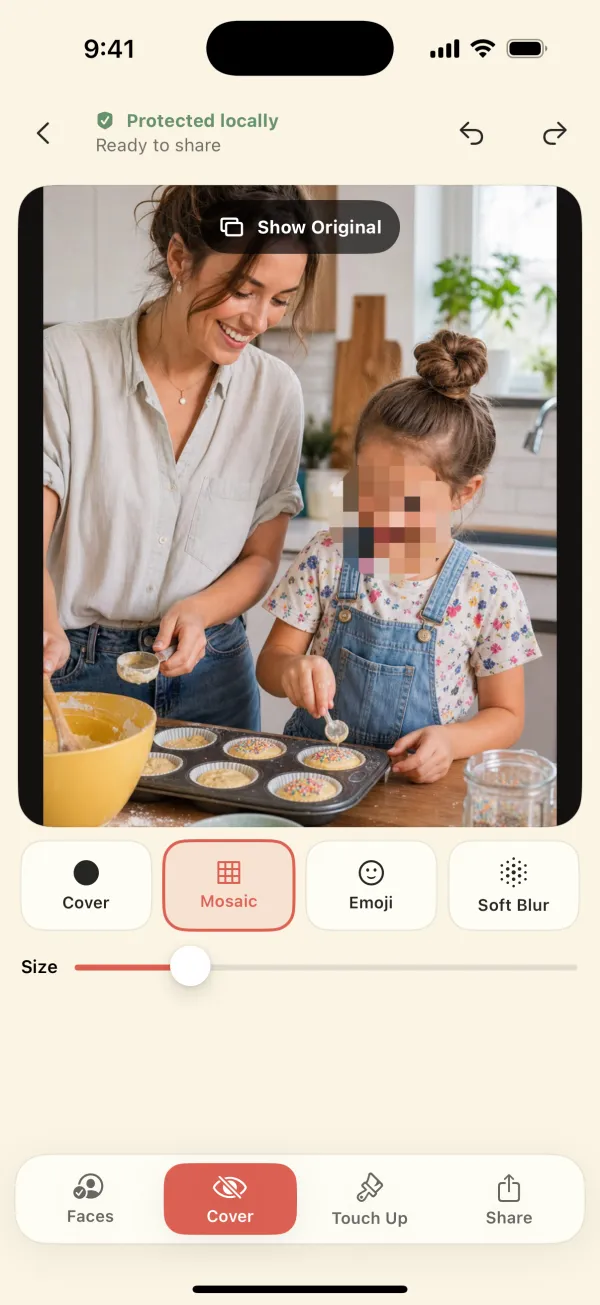
Mosaic pixelates the faces you choose. Emoji puts any emoji you like over a face. The Size slider sets how far the cover reaches. Both run on your iPhone and export without a watermark.
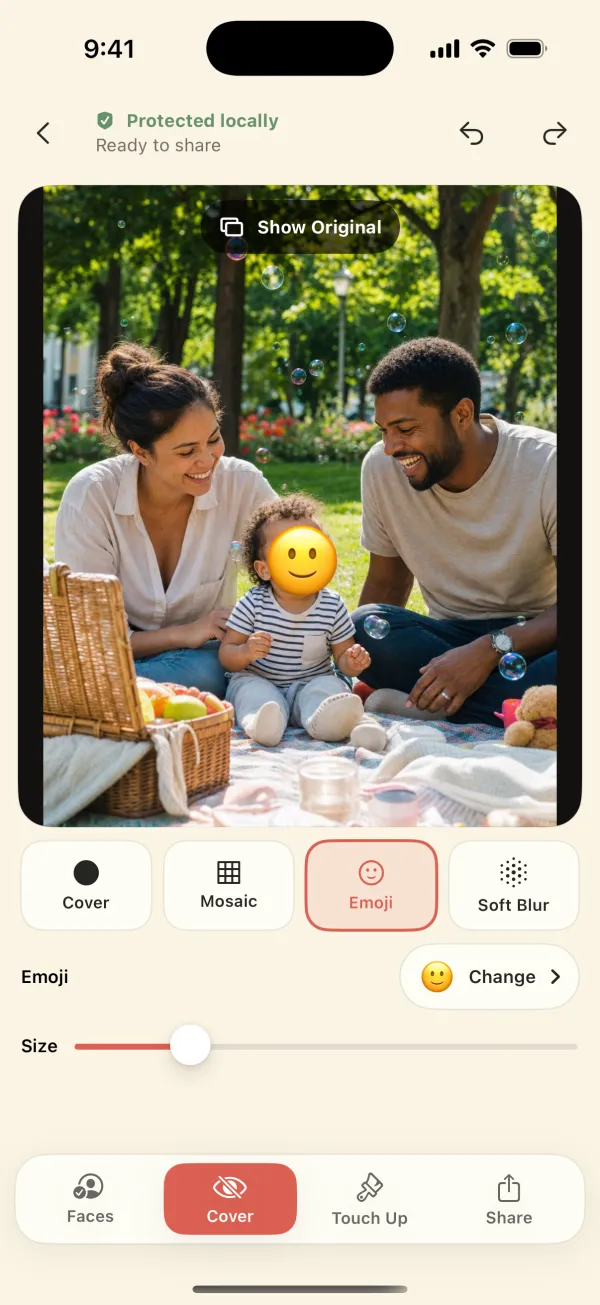
Short answer: select the faces, switch to Cover, and choose Mosaic for pixelation or Emoji for an emoji cover. Tap Change to pick a different emoji. Use Size so the cover extends past the face. Then export.
Mosaic (pixelate)
Mosaic replaces the face with large color blocks. It's the familiar “news broadcast” look. The app scales the block size to the photo, so faces are pixelated heavily, but the rough shape, skin tone, and hair can still be recognizable to people who know the person. Use Privacy Cover when identity really matters.
Emoji cover
Emoji draws a solid emoji over each selected face. It's a friendlier look for birthday and family posts. The default is 🙂; tap Change to use any emoji from the keyboard. Every selected face in the photo gets the same emoji. Check that the emoji covers the whole face, including ears and jawline, and raise Size if it doesn't.
Which to use
| Style | Hides identity | Look | Good for |
|---|---|---|---|
| Privacy Cover | Strongest (opaque) | Solid coral circle | Public posts, other people's kids, sensitive situations |
| Emoji | Strong when it covers the whole face | Playful | Family and birthday posts |
| Mosaic | Medium: shape and coloring remain | Classic pixelate | Bystanders, casual posts |
| Soft Blur | Weakest | Gentle | Private chats where the look matters most |
Full comparison with examples: blur vs mosaic vs cover vs emoji.
Can pixelation be reversed?
The exported file contains only the pixelated blocks. The original face pixels are not in it, and there are no layers to peel off. But pixelation keeps some information (shape, coloring, hair), and people who know the person, or software comparing against known photos, may still recognize them. That's why an opaque cover is the safer default for public posts.
Questions
Can I use a different emoji for each face?
One emoji is used for the selected faces in a photo. You can change which emoji at any time before export.
Is there a watermark?
No. Exports have no watermark, at full resolution.
Can I pixelate part of a photo that isn't a face?
Yes. Use Touch Up → Hide to paint any area; it gets the currently selected cover style.
Pixelate or emoji-cover faces on iPhone.
Blur Photo & Face Censor works on your iPhone or iPad, exports a new copy without location data, and never uploads your photos. $3.99 once, no subscription.