
Practical examples
Prepare a family photo for sharing: faces, background, and export.
Safe Little Faces, listed as Blur Photo & Face Censor, helps you cover selected faces and sensitive details on your device. Automatic face detection is a starting point. Review the entire picture and decide who should receive it before sharing.
Example 1
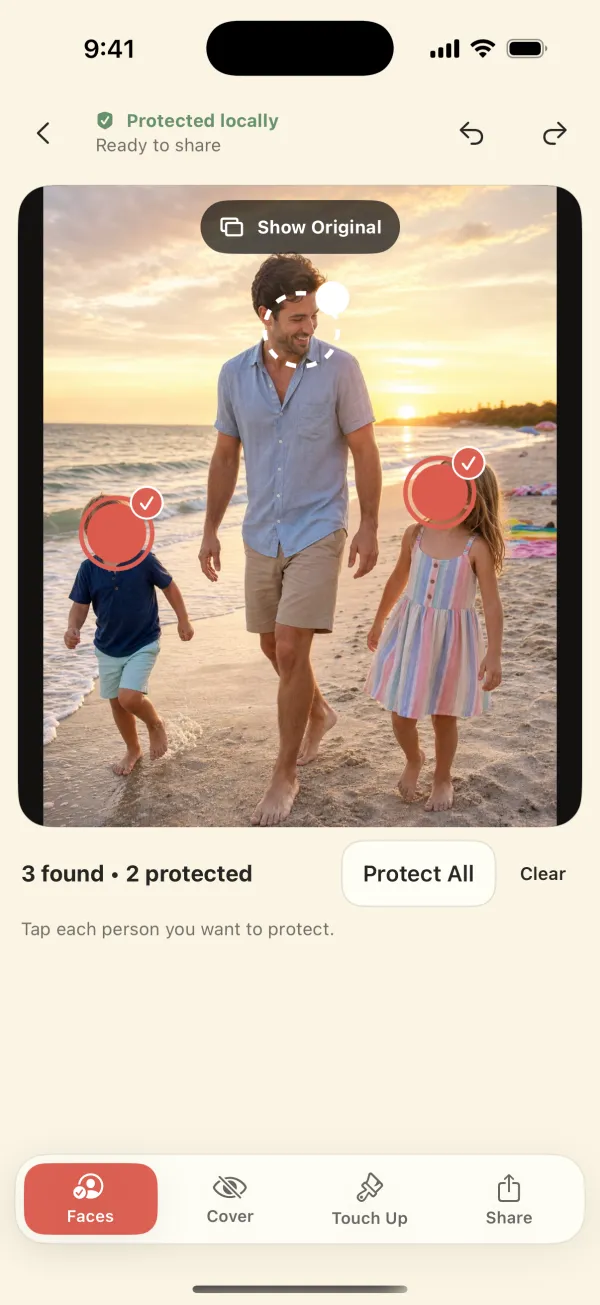
Cover selected faces in a group picture
Choose the photo and review the detected faces. Select the people you want to protect, choose a cover style, and inspect each result. Look for small, side-facing, partly hidden, or reflected faces that detection may have missed. Use the manual Hide brush where needed and check that people you intended to leave visible remain visible.
Example 2
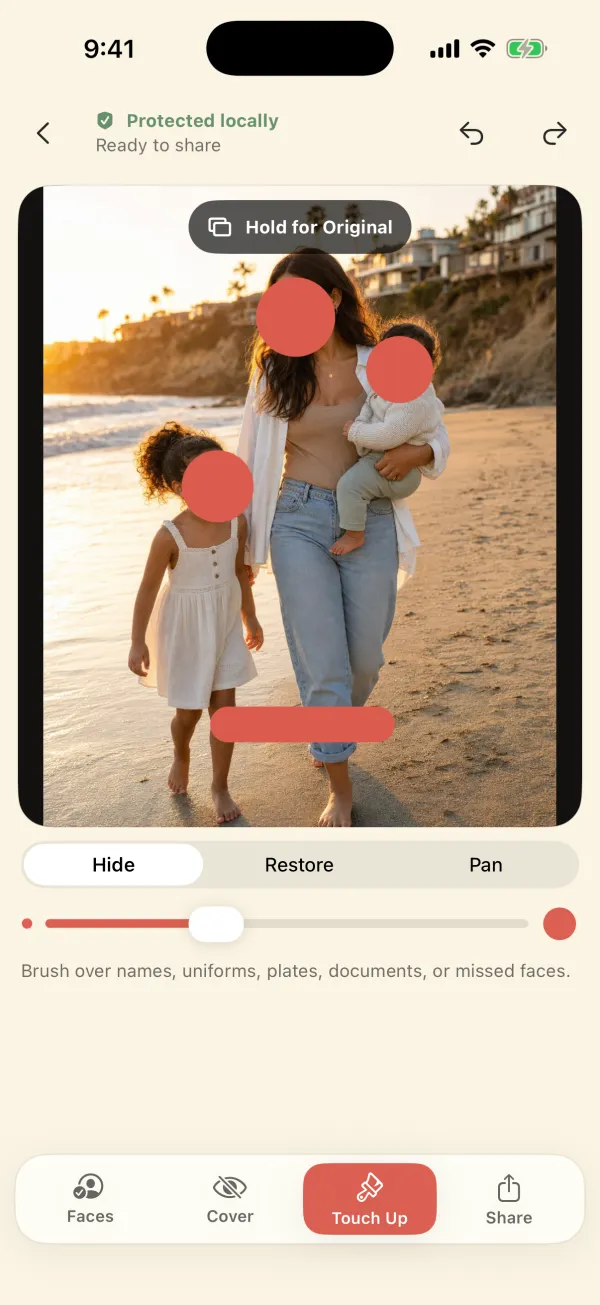
Hide a school name, license plate, or address in the background
Inspect clothing, signs, documents, screens, and reflections as well as faces. Use the manual Hide tool to cover a name or other identifying detail. Restore areas if the brush extends too far. Review the whole image again at normal size and zoomed in; hiding a face does not remove contextual clues.
Example 3
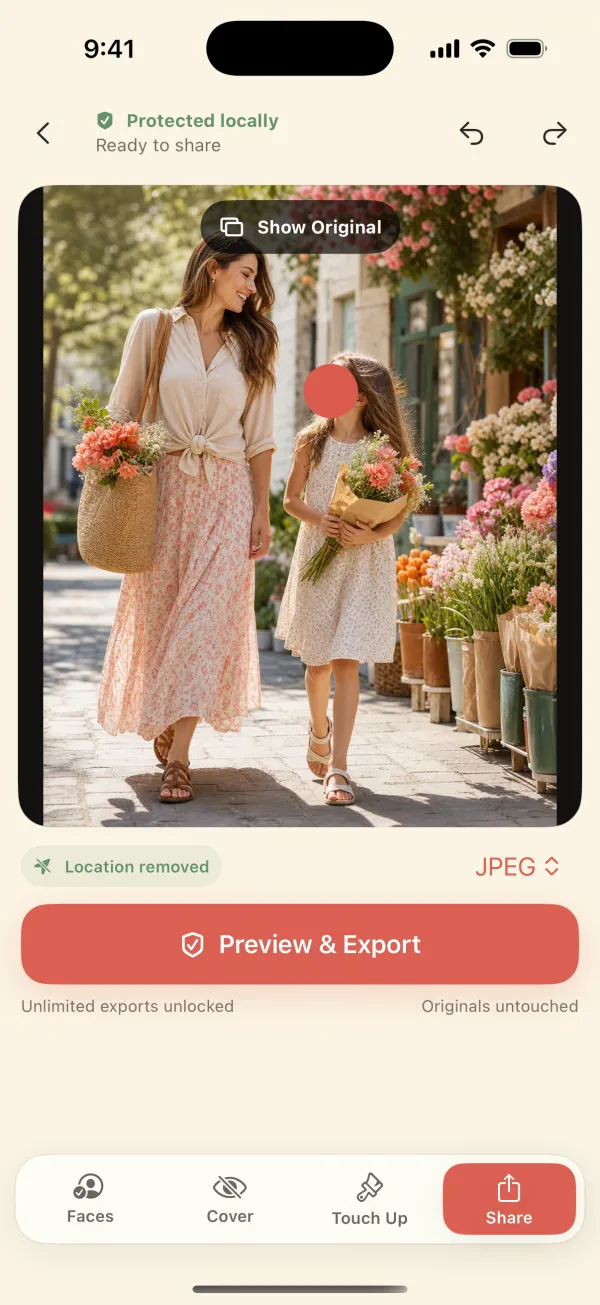
Review a batch before sending it to family
Work through each selected photo rather than assuming the same people were found in every frame. Export protected copies and inspect the actual files you plan to share. The app leaves originals unchanged and omits identifying source metadata from its exports. Confirm that you selected the protected copies in your messaging or social app.
No cover style guarantees anonymity. Consider consent, the audience, captions, recognizable clothing, and background clues. Strong opaque covers obscure facial detail more completely than a light blur, but the rest of the photo still needs review.
Access and device requirements
$4.99 one-time purchase in the U.S. App Store; no subscription or in-app purchase required. All editing tools and export are included. Other storefront prices may differ.
iPhone and iPad; requires iOS or iPadOS 17.0 or later.
Cover the faces and details you choose.
Blur Photo & Face Censor works on your iPhone or iPad, exports a new copy without location data, and never uploads your photos. $4.99 once, no subscription.
 Scan with your iPhone