
Group photos · step-by-step
How to blur only some faces in a group photo on iPhone
To blur only some faces in a group photo on iPhone, open it in Blur Photo & Face Censor and tap just the faces you want hidden. Faces stay visible until you tap them, and a counter shows how many were found and how many are covered. Detection and export run on the iPhone, so nothing is uploaded, and the app is $4.99 once with no subscription.
Tap the people who should be hidden and leave everyone else alone. If most of the group needs hiding, tap Protect All, then tap the few people who agreed to appear to uncover them. Check for small or side-on faces the detector missed, cover those with the Touch Up brush, and export a new copy. No app? Draw an opaque filled shape over each face in Photos Markup. It's free, but you place one shape per face by hand.
A team photo, a birthday party, a class trip: usually you can show some people and not others. Maybe your own kids are fine but a friend's child isn't. Or one family has asked not to be posted. Blurring the whole photo throws the moment away. The aim is to cover exactly the faces that need it and leave the rest of the group as it was.
Steps in Blur Photo & Face Censor
- Choose Photos. Pick the group photo, or up to 20 photos from the same event, with Apple's photo picker. The app sees only the photos you pick.
- Look at the Faces screen. Each detected face gets a circle, and none are covered yet. The line under the photo reads like “7 found • 0 protected,” so you know how many faces the app found.
- Tap only the people to hide. Each tap covers that face and the counter goes up (for example, “7 found • 2 protected”). Tap again to uncover. Clear uncovers every face in that photo.
- Hiding nearly everyone? Tap Protect All, then tap the people who should stay visible to uncover them. When most of the group needs hiding, that takes fewer taps.
- Pick a cover. On the Cover tab, choose Privacy Cover (opaque), Mosaic, Emoji, or Soft Blur, and use the Size slider so each cover reaches past the hairline and jaw. Style and size apply to every covered face in that photo. Emoji uses one emoji for the whole photo.
- Fix what detection missed. In Touch Up, brush over any face that didn't get a circle: back rows, profiles, faces half behind someone, reflections. If a cover spills onto someone who should stay visible, brush that spot with Restore.
- Review and export. Compare with the original, then export a new JPEG or PNG. The copy leaves out location, capture date, and camera details, and your original photo isn't changed.
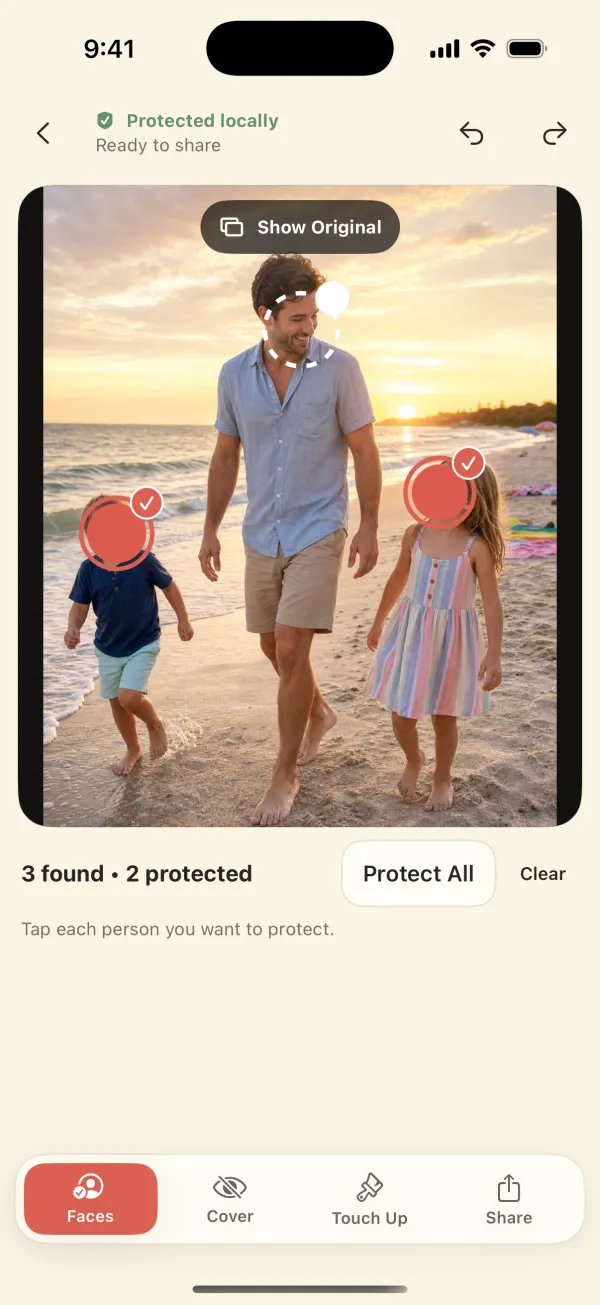
Tap to cover, or Protect All and uncover?
| Situation | Faster approach |
|---|---|
| Hide one or two kids in a big group | Tap just those faces |
| Show only your family; hide everyone else | Protect All, then tap your family to uncover them |
| Hide strangers in the background of a portrait | Protect All, then uncover the people in the portrait |
| Not sure who agreed yet | Cover everyone, and only uncover people once you've confirmed |
Problems specific to group photos
- Back rows and small faces. Face detection (Apple's Vision framework, on the device) can miss very small, turned, or partly blocked faces. Compare the counter with a head count of the photo. If it found 11 faces and you can see 12 people, find the missing one and brush over it.
- Faces close together. A big cover on one child can creep onto the face of the person next to them. Lower Size, or use Restore on the overlap, so the people you meant to leave visible still are.
- Batches. Each photo keeps its own choices, and detection runs separately on every frame. The editor shows how many photos still need review. A child you covered in photo 1 isn't covered in photo 2 until you tap them there too.
- Clues besides the face. Jersey names and numbers, name tags, and a school logo can identify a child whose face is covered. Brush them with Touch Up if they matter.
- Captions and tags. Don't name or tag a child whose face you covered.
Deciding who stays visible
The app doesn't decide who is a child or who agreed to be posted. It doesn't recognize anyone or guess ages. You decide. For team, class, and event photos, check the organizer's rules and the families' wishes before you post. Leave anyone you aren't sure about covered. The youth sports and group photo checklist, the school and daycare checklist, and consent and etiquette cover that part.
Other ways to do it
- Photos Markup (free, every iPhone): Edit → Markup → + → add a shape. Set a solid fill at full opacity and drag it over each face. Nothing is detected for you, so it's slow for a big group. Free options and their limits.
- Clean Up (Apple Intelligence iPhones): Apple says brushing over a face in Clean Up “may” pixelate it. You'd do that one face at a time.
- Crop or reframe: if the person who shouldn't appear is at the edge, cropping can be cleaner than any cover.
- Other apps: Kumo, Poof, Blurshot, and Face Blur: Mosaic & Emoji also let you tap faces to cover or reveal, according to their App Store listings (checked November 8, 2026). Kumo, Poof, and Face Blur can give each face a different style, and Kumo also handles video. Our app uses one style per photo. Prices and privacy labels are in the offline face blur app comparison.
Limits
It works on photos only, not video. It finds faces but not license plates or text, which you brush by hand. No cover stops a recipient from screenshotting or forwarding the photo, and clothing, places, and captions can still identify someone. Want to see the result before buying? Here's a before-and-after example (sample photo, in-app preview).
Questions
Can I blur some faces and leave others clear on iPhone?
Yes. In Blur Photo & Face Censor, faces aren't covered until you tap them, so you cover only the people you choose. Protect All covers everyone, and you can then tap people to uncover them. The app runs on-device and is $4.99 once.
What if the app misses a face in the back row?
Use the Touch Up brush to paint over it with the current cover style. Compare the “found” count with the number of people you can see.
Can each face get a different emoji?
No. One emoji is used for every covered face in a photo. Poof, Kumo, and Face Blur: Mosaic & Emoji list per-face styles if you need that.
Is the group photo uploaded anywhere?
No. Detection, editing, and export run on the iPhone or iPad. The app has no account or photo server, and its App Store privacy label is Data Not Collected. If iCloud Photos is on, the exported copy you save to Photos syncs like any other photo.
Cover only the faces you choose.
Blur Photo & Face Censor works on your iPhone or iPad, exports a new copy without location data, and never uploads your photos. $4.99 once, no subscription.
 Scan with your iPhone